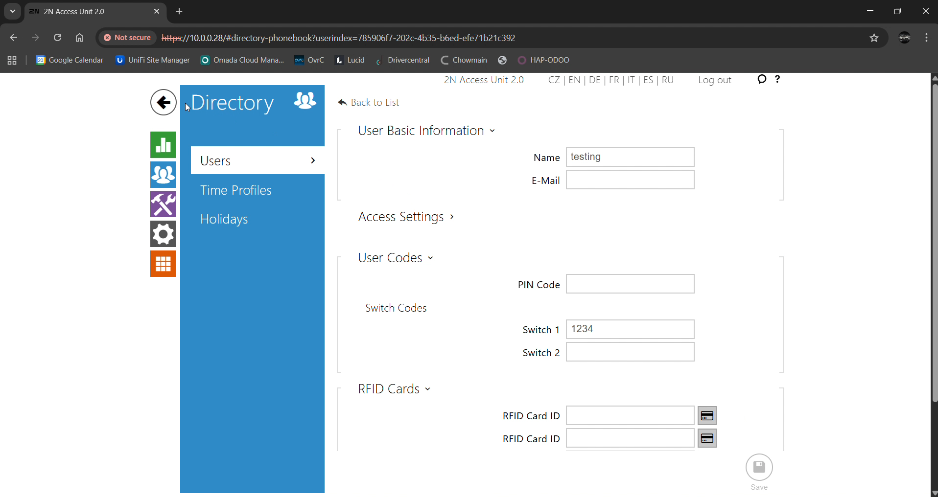
How to Change the PIN Code for a 2N Access Unit
1. Connect to the Network
Ensure your computer or mobile device is connected to the **same network (Wi-Fi or LAN)** as the 2N Access Unit.
2. Access the Web Interface
Open Google Chrome / Microsoft Edge / Safari and enter the IP address of the 2N Access Unit in the address bar.
* House C: 192.168.40.209
* House D: 192.168.40.204
* House D: 192.168.40.204
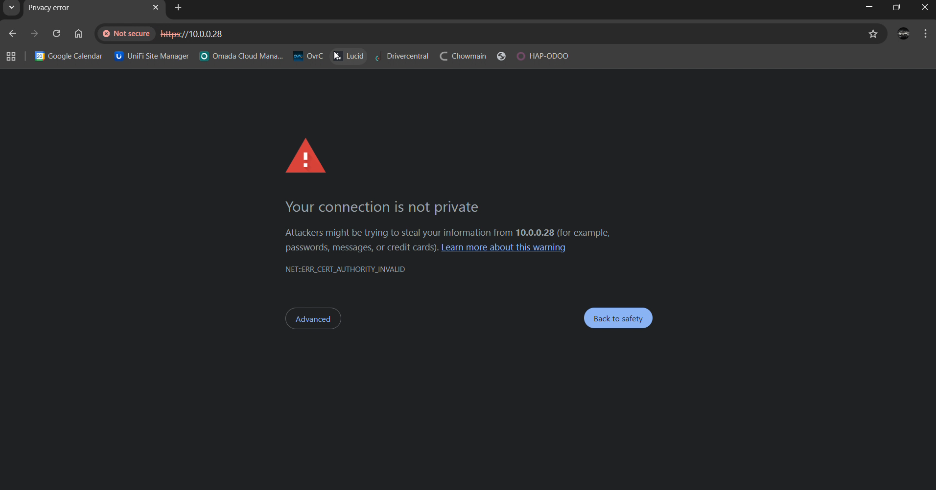
3. Bypass Security Warning
If you see a “Your connection is not private” warning:
* Click Advanced
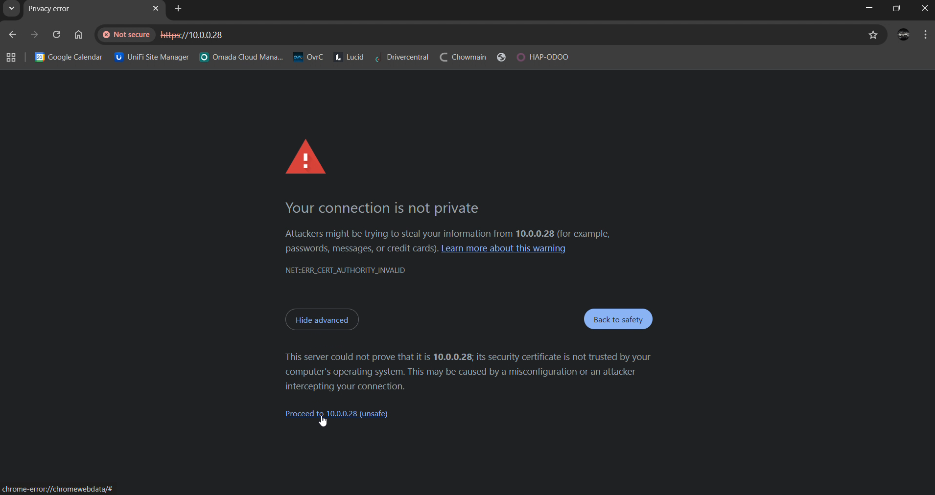
* Click Proceed to <IP address>
* House C: Proceed to 192.168.40.209
* House D: Proceed to 192.168.40.204
* House D: Proceed to 192.168.40.204
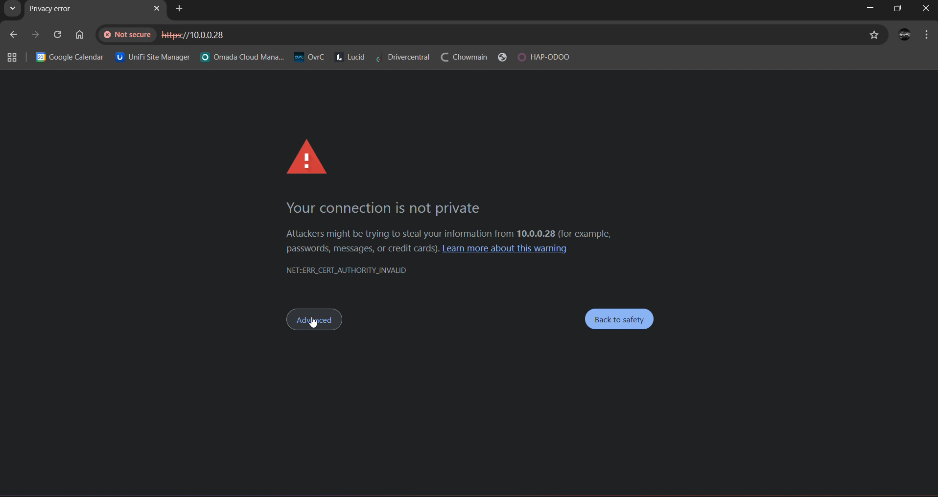
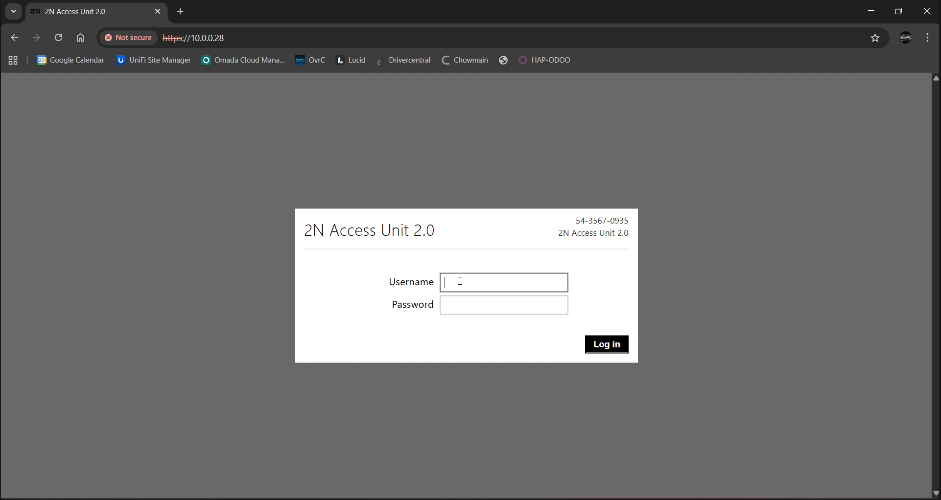
4. Log In
* Username: admin
* Password: Control4
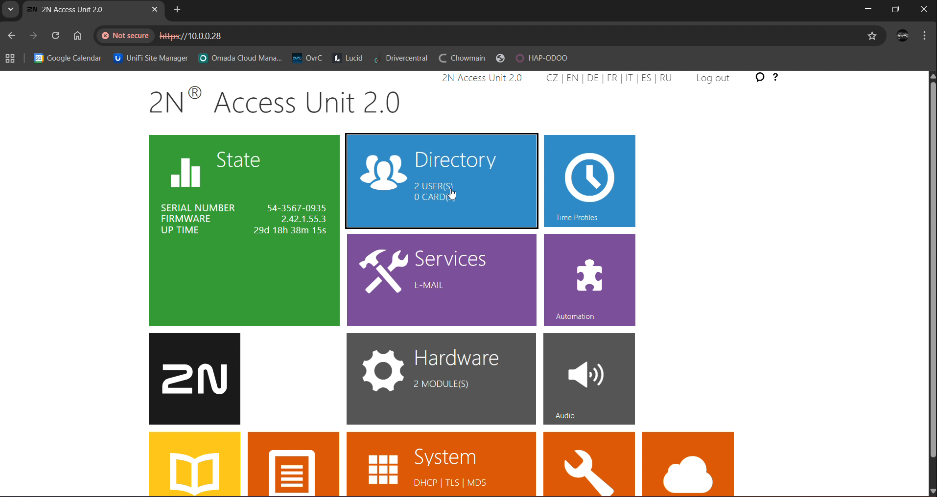
5. Open Directory
* From the main menu, click Directory
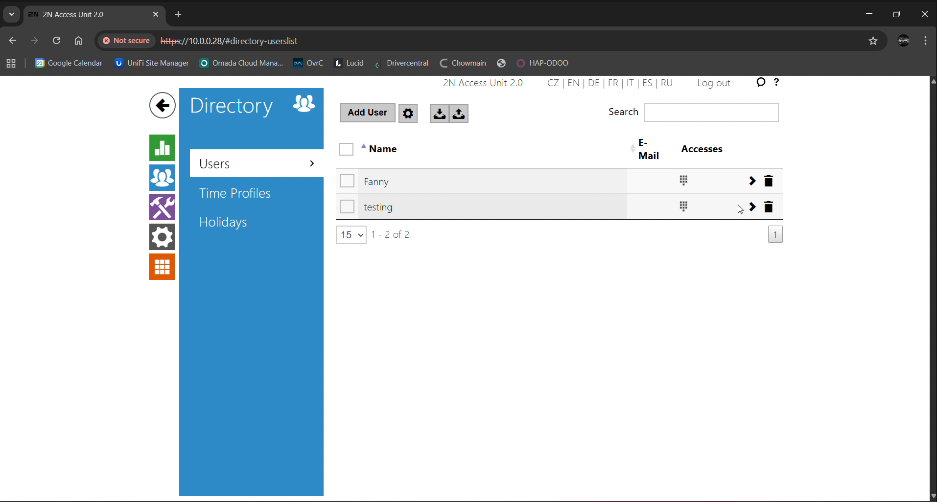
6. Select Add User or Existing User
* Click on the relevant user
* Example: admin
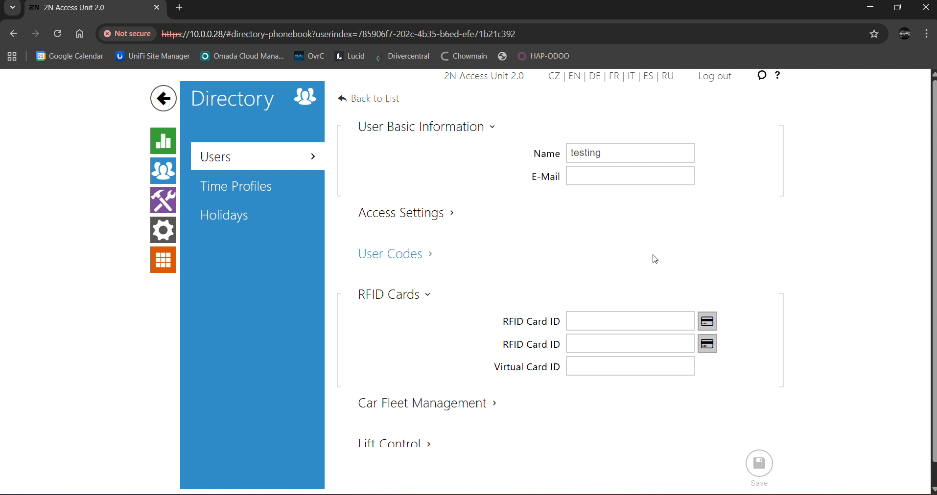
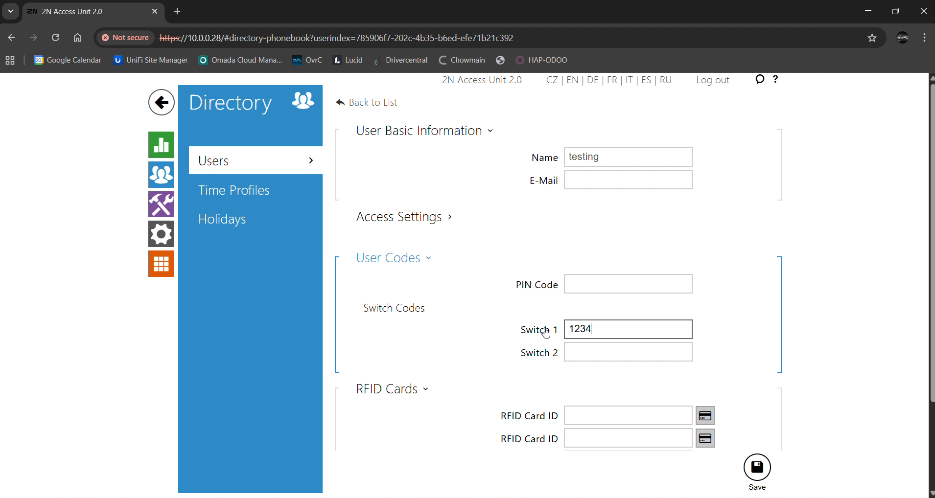
7. Edit User Codes
* Click on User Codes
8. Change the PIN
* Update the PIN code under Switch 1
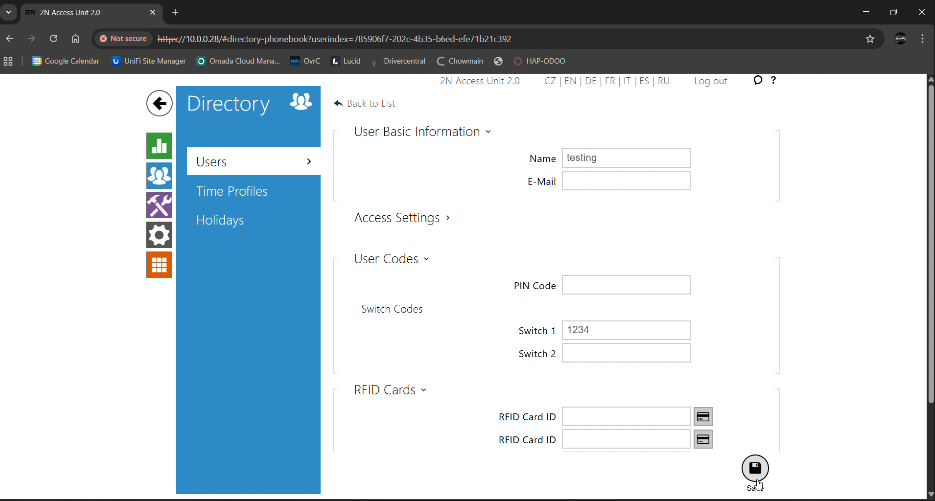
9. Save Changes
* Click Save
10. Log Out
* Click Log Out to exit securely