🕒 How to Configure NTP (Network Time Protocol) and DST (Daylight Saving Time) on Hikvision Devices
Keeping your device’s date and time accurate is essential for proper event logging, playback, and scheduling. Hikvision devices support NTP (Network Time Protocol) to automatically sync the time and DST (Daylight Saving Time) adjustments to match local seasonal changes. This guide will walk you through configuring both features.
📱 Part 1: Configure NTP Settings
Purpose: NTP keeps your Hikvision device’s time accurate by automatically synchronizing it with a time server.
Step 1: Access Network Settings
On the device menu, go to:
Menu → Configuration → Network
Select the NTP tab.
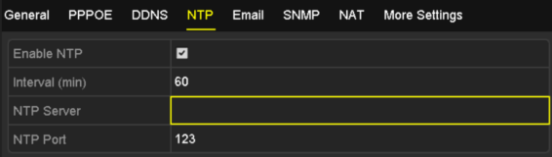
Step 2: Enable NTP
Check the Enable NTP box.
Step 3: Enter NTP Configuration
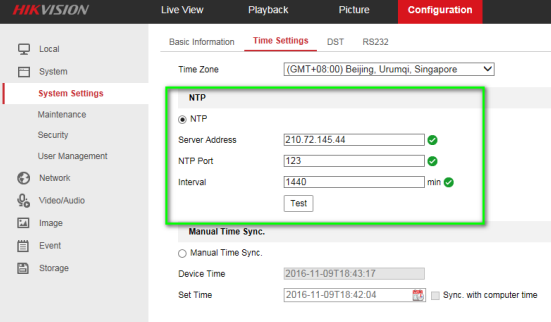
Interval – How often the device syncs with the NTP server (in minutes).
(Default: 60 minutes, Range: 1–10,080 minutes)
NTP Server – Enter the server IP address (e.g., 0.sg.pool.ntp.org for National Time Center).
NTP Port – Leave at default 123 unless instructed otherwise.
Step 4: Save Your Settings
Click Apply to save and exit.
Step 5: Or configure it via web browser in the interface below.
💡 Tip:
If your device is on a public network, use a reliable public NTP server.
If your network is private, set up a local NTP server for synchronization.
🗓 Part 2: Configure DST (Daylight Saving Time)
Purpose: DST adjusts the device time forward or backward by one hour during seasonal changes.
Step 1: Access General Settings
Go to:
Menu → Configuration → General
Select the DST Settings tab.

Step 2: Enable DST
You have two options:
Auto DST Adjustment – Automatically adjusts time based on your region.
Manual DST – Enable DST and set the start and end date/time manually.
Step 3: Save Your Settings
Click Apply.
Step 4: Or configure it via web browser in the interface below.

⚠️ Important:
If DST is active and you only enable NTP without enabling DST, your device’s time may still be incorrect.
💡 Pro Tips
If your IPC (IP Camera) is connected to an NVR, setting NTP and DST in the NVR is enough — the NVR will sync the cameras automatically.
Always verify your time zone setting before enabling DST or NTP.
If you notice time drift, try reducing the NTP sync interval.
📄 Related Documents